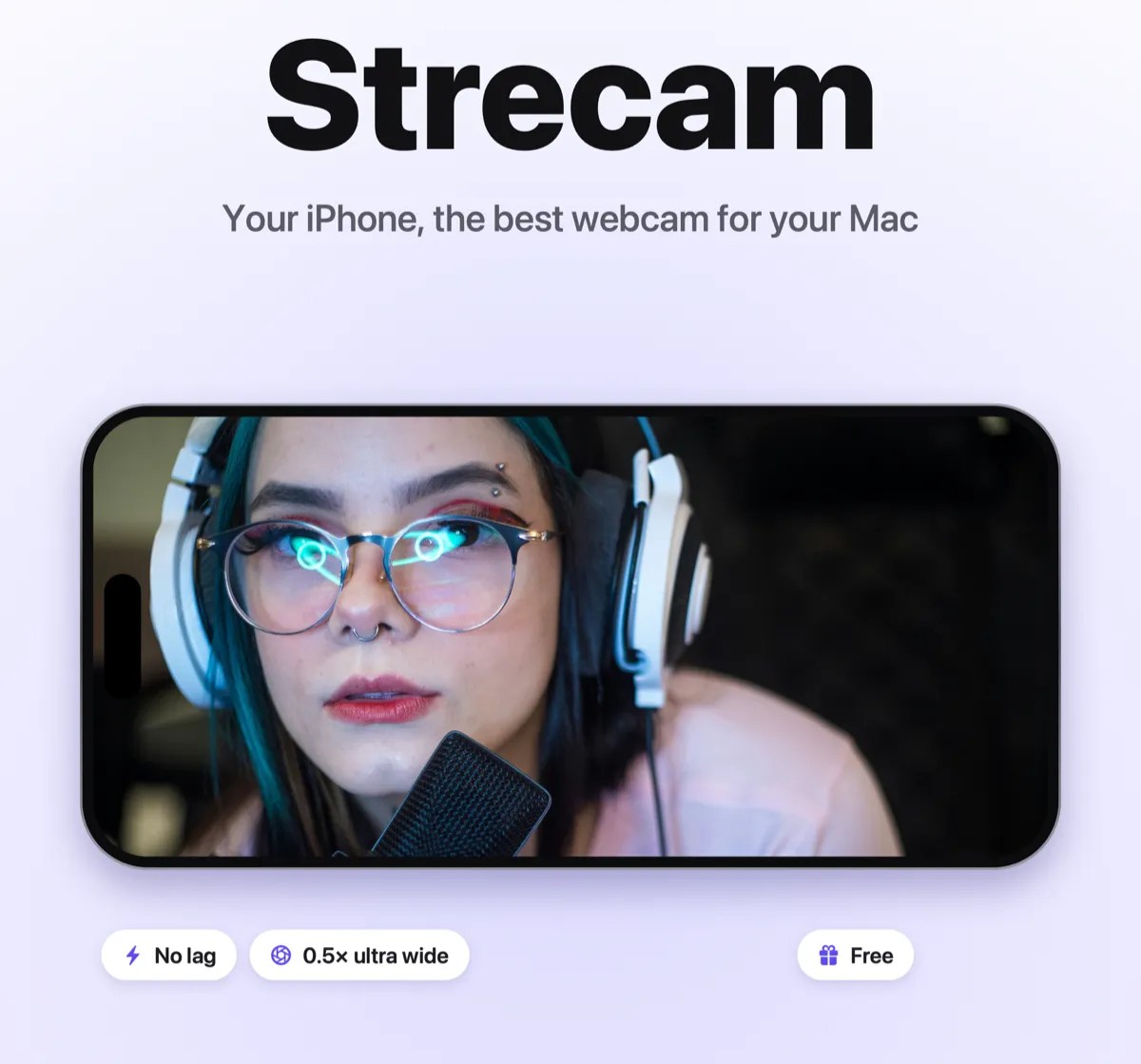
Strecam is a free app that turns your iPhone or iPad into a webcam for your Mac. Connect it with a USB-C or Lightning cable and pick it as a camera in OBS, QuickTime or your favorite streaming app. Live video with no lag, and nothing on screen but you.
Why use your iPhone as a webcam?
The camera on your iPhone or iPad is much better than the built-in webcam on most Macs. Strecam lets you use it for streaming, video calls and recording, over a cable, so the image stays sharp and in sync with your voice.
- No lag: a wired USB-C or Lightning connection instead of Wi-Fi.
- Every lens: switch between the 0.5× ultra wide, 1×, 2× and front cameras.
- Portrait or landscape: stream vertical video for mobile platforms or classic 16:9.
- Works with the apps you already use: OBS Studio, QuickTime Player and any streaming or recording app that accepts a camera.
- Free: an optional in-app purchase removes ads and the watermark.
Full control with gestures, nothing on screen
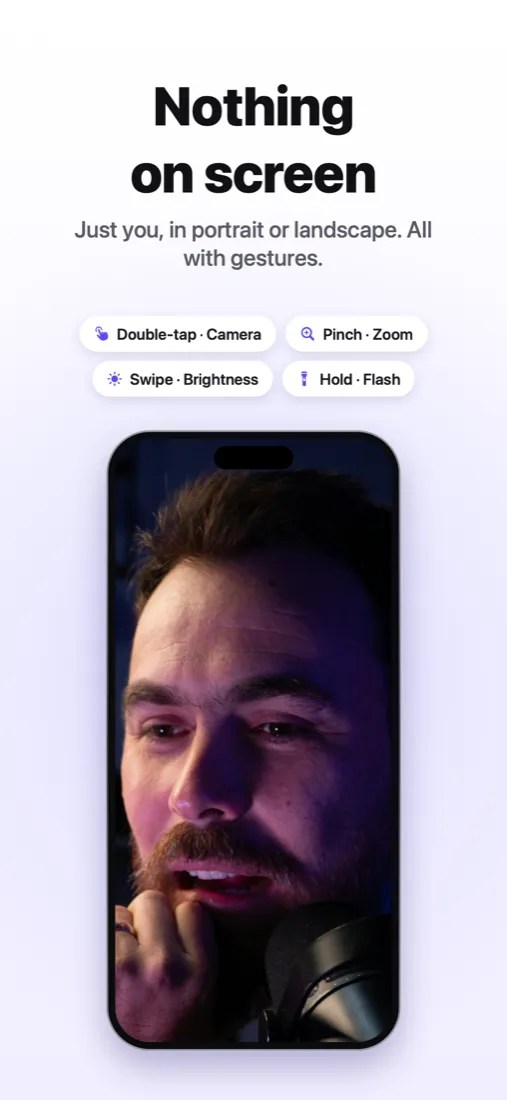
Strecam keeps the screen clean so the image your audience sees is just you. Everything is controlled with gestures:
- Double-tap to switch camera (0.5×, 1×, 2×, front)
- Tap to focus
- Swipe up or down to change brightness
- Pinch to zoom
- Press and hold to turn the flash on
How to use your iPhone as a webcam on Mac
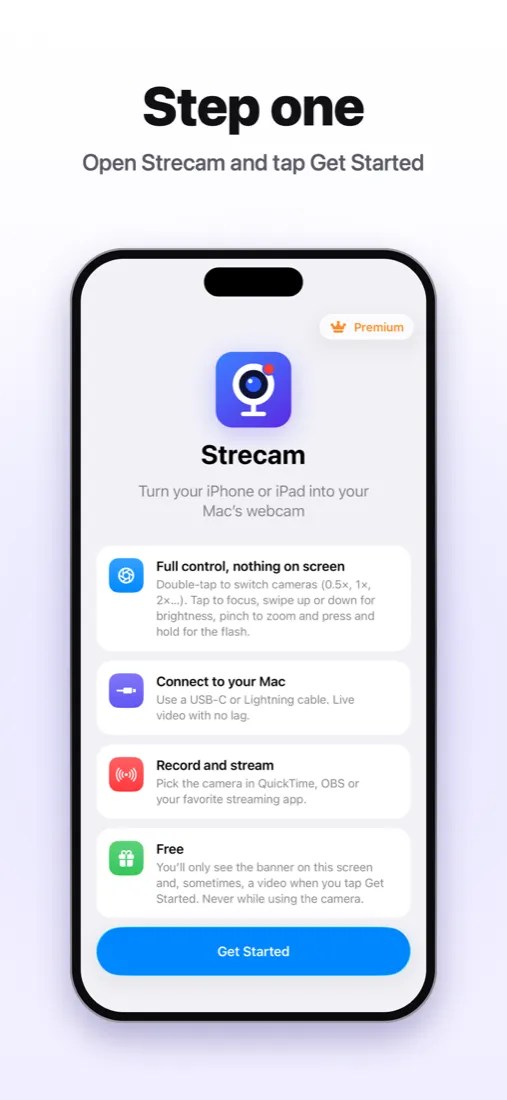
Step 1: Open Strecam and tap Get Started
Install Strecam from the App Store, open it on your iPhone or iPad and tap Get Started. The camera opens full screen.
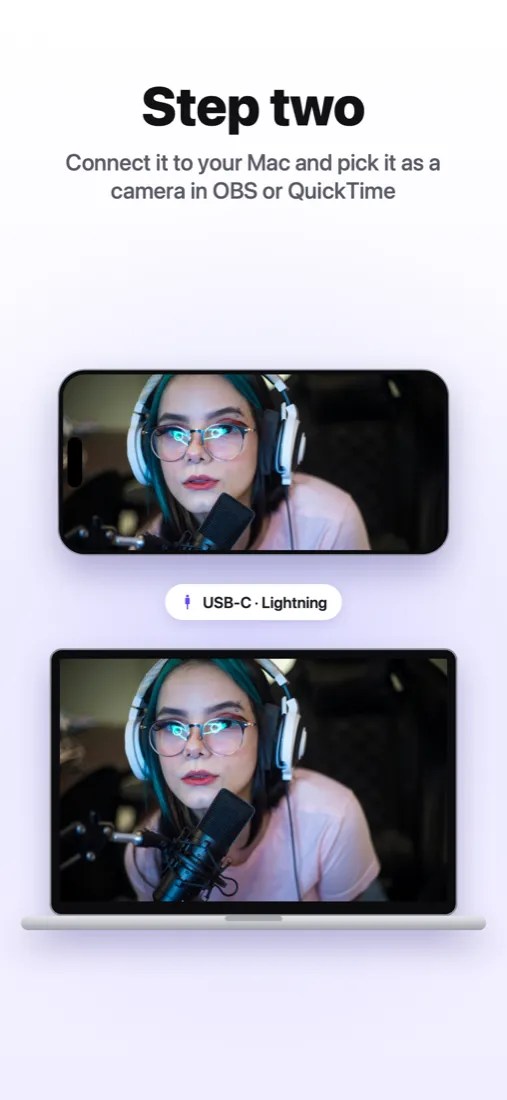
Step 2: Connect it and pick it as a camera
Connect the iPhone to your Mac with a USB-C or Lightning cable. In OBS, add a Video Capture Device source and choose your iPhone or iPad. In QuickTime, choose File › New Movie Recording and select your device from the camera menu.
Tip: turn on Do Not Disturb on your iPhone (Settings › Focus) before you go live, so notifications don’t appear in your stream.
Requirements
- iPhone, iPad or iPod touch with iOS 15 or later
- A Mac with OBS Studio, QuickTime Player or another app that accepts a camera
- A USB-C or Lightning cable
Frequently asked questions
Is Strecam free?
Yes. Strecam is free to download and use. You’ll only see an ad banner on the welcome screen and, sometimes, a video when you tap Get Started – never while using the camera. An optional in-app purchase removes ads and the watermark.
Does Strecam work with OBS?
Yes. Once your iPhone is connected, add a Video Capture Device source in OBS Studio and select your iPhone or iPad from the device list.
Do I need Wi-Fi?
No. Strecam sends the video over the cable, which keeps latency low and the image stable.
Can I use the ultra wide or front camera?
Yes. Double-tap the screen to switch between the 0.5× ultra wide, 1×, 2× and front cameras, depending on what your device has.
Can I stream in portrait?
Yes. Strecam works in portrait and landscape – just rotate your device.